
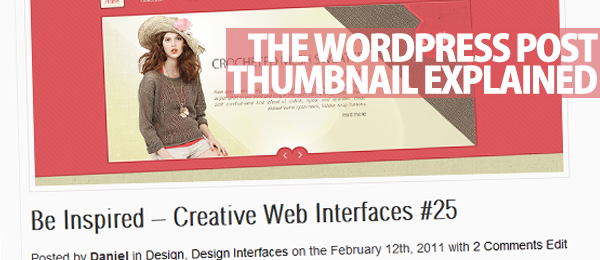
Following on from a WordPress tutorial I did a few months ago – Adding Post Thumbnails To WordPress 3.0, there has been some confusion as the default theme that shipped out with the 3.0 install was coded differently to the default theme in 2.9.
In this tutorial I am going to explain how to add post thumbnails to your articles and showcases easyly with the WordPress 2.9 framework that everyone seems to prefer, me included.
When 3.0 was released, the new default theme used a different template structure by moving the famous WordPress loop out of index.php and in to it’s own file named loop.php. The coding wasn’t to different to what is was in 2.9 but it became confusing. If you are happily using the new default theme in 3.0+ you may want to check out Adding Post Thumbnails To WordPress 3.0.
If you have any problems or questions regarding this tutorial, please leave a comment and I will be of assistance.
Preparation
As you browse various design related blogs, there are plenty of different styles to choose from. I will give you a few examples of the most popular ones with the HTML and CSS required to achieve them, combined with the WordPress snippets to achieve your post thumbnail.
Feel free to experiment as you have full control. The post thumbnail is featured on nearly every creative magazine I visit. On nenuno creative, I have opted to use two different post thumbnail styles to create a magazine effect.
Post Thumbnail To The Left
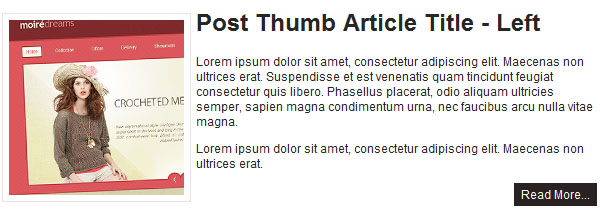
[php]<?php if ( have_posts() ) : while ( have_posts() ) : the_post(); ?></span>
<pre>
<div id="post-thumb-wrapper">
<?php if ( function_exists("has_post_thumbnail") && has_post_thumbnail() ) { the_post_thumbnail(array(175,175), array("class" => "alignleft post_thumbnail")); } ?><h1><?php the_title(); ?></h1>
<p><?php the_content(); ?></p>
<a class="more-link" href="<?php the_permalink() ?>" rel="bookmark" title="Permanent Link to <?php the_title_attribute(); ?>">Continue reading "<?php the_title_attribute(); ?>"</a>
</div>
<?php endwhile; endif; ?>[/php]
CSS to style the article with a WordPress Thumbnail aligned to the left.
[css]p {
font-family:Arial, Helvetica, sans-serif;
font-size:12px;
color:#262626;
}
#post-thumb-wrapper {
width:600px;
}
#post-thumb-wrapper .more-link {
background: none repeat scroll 0 0 #2A2122;
color: #F8F3EE;
font-family:Arial, Helvetica, sans-serif;
font-size:12px;
padding: 4px 7px;
text-decoration: none;
}
#post-thumb-wrapper a.more-link:hover {
background: #00A9E6;
color: #fff;
}
h1 {
font-family:Arial, Helvetica, sans-serif;
font-size:24px;
color:#262626;
font-weight:bold;
}
.post_thumbnail {
border: 1px solid rgb(235, 226, 226);
padding: 6px;
}[/css]
Post Thumbnail To The Right
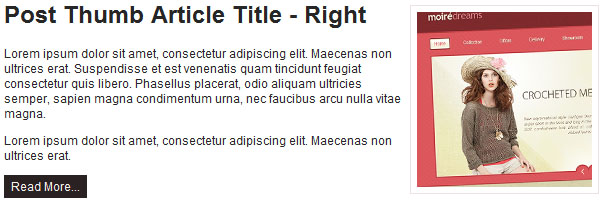
[php]<?php if ( have_posts() ) : while ( have_posts() ) : the_post(); ?>
<div id="post-thumb-wrapper">
<?php if ( function_exists("has_post_thumbnail") && has_post_thumbnail() ) { the_post_thumbnail(array(175,175), array("class" => "alignright post_thumbnail")); } ?><h1><?php the_title(); ?></h1>
<p><?php the_content(); ?></p>
<a class="more-link" href="<?php the_permalink() ?>" rel="bookmark" title="Permanent Link to <?php the_title_attribute(); ?>">Continue reading "<?php the_title_attribute(); ?>"</a>
</div>
<?php endwhile; endif; ?>[/php]
CSS to style the article with a WordPress Thumbnail aligned to the left.
[css]p {
font-family:Arial, Helvetica, sans-serif;
font-size:12px;
color:#262626;
}
#post-thumb-wrapper {
width:600px;
}
#post-thumb-wrapper .more-link {
background: none repeat scroll 0 0 #2A2122;
color: #F8F3EE;
font-family:Arial, Helvetica, sans-serif;
font-size:12px;
padding: 4px 7px;
text-decoration: none;
}
#post-thumb-wrapper a.more-link:hover {
background: #00A9E6;
color: #fff;
}
h1 {
font-family:Arial, Helvetica, sans-serif;
font-size:24px;
color:#262626;
font-weight:bold;
}
.post_thumbnail {
border: 1px solid rgb(235, 226, 226);
padding: 6px;
}[/css]
Post Thumbnail at The Top
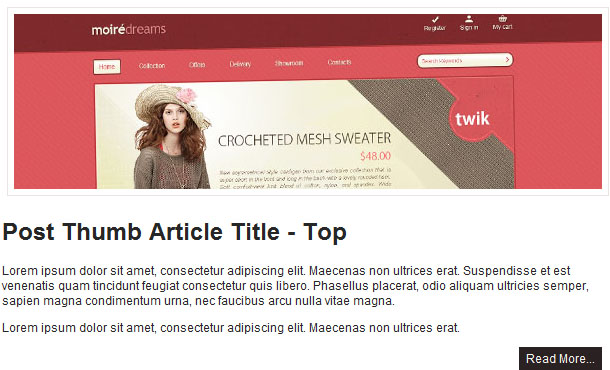
[php]<?php if ( have_posts() ) : while ( have_posts() ) : the_post(); ?>
<div id="post-thumb-wrapper">
<?php if ( function_exists("has_post_thumbnail") && has_post_thumbnail() ) { the_post_thumbnail(array(600,175), array("class" => "post_thumbnail")); } ?><h1><?php the_title(); ?></h1>
<p><?php the_content(); ?></p>
<a class="more-link" href="<?php the_permalink() ?>" rel="bookmark" title="Permanent Link to <?php the_title_attribute(); ?>">Continue reading "<?php the_title_attribute(); ?>"</a>
</div>
<?php endwhile; endif; ?>[/php]
CSS to style the article with a WordPress Thumbnail aligned to the left.
[css]p {
font-family:Arial, Helvetica, sans-serif;
font-size:12px;
color:#262626;
}
#post-thumb-wrapper {
width:600px;
}
#post-thumb-wrapper .more-link {
background: none repeat scroll 0 0 #2A2122;
color: #F8F3EE;
font-family:Arial, Helvetica, sans-serif;
font-size:12px;
padding: 4px 7px;
text-decoration: none;
}
#post-thumb-wrapper a.more-link:hover {
background: #00A9E6;
color: #fff;
}
h1 {
font-family:Arial, Helvetica, sans-serif;
font-size:24px;
color:#262626;
font-weight:bold;
}
.post_thumbnail {
border: 1px solid rgb(235, 226, 226);
padding: 6px;
}[/css]
If you wish to have your post thumbnails larger or smaller than the ones demoed, all you need to do is amend the following line with the values you require – 600 is width and 175 is height:
[php]the_post_thumbnail(array(600,175)[/php]
If you are modifying an existing theme or building your own, don’t forget to add the following line in your functions.php file located in your themes directory:
[php]<?php if ( function_exists("add_theme_support") ) { add_theme_support("post-thumbnails"); } ?>[/php]
I great set of info I’m gonna give this code a try :)
really good read, but I’m having problems with the display of the images. Basically it doesn;t display anything, just the brocken icon. w600 h175, I removed the padding border and still nothing. damn this php!
got it! the problem was that Smush.it plugin.
Hi, I’m using twentyeleven theme and I need to move the thumbnail under the article title. How can I do that? Where should I look for the loop?